Hi there, how do I find the size of a block and how do I change the size?
Can you also merge two blocks?
Can you nest a block within a block?
Hi there, how do I find the size of a block and how do I change the size?
Can you also merge two blocks?
Can you nest a block within a block?
Hi Michael
You can change the position of the block so it is at the side, full width of page in header or central column.
The size of the block adapts to the space that is available to it - you can see this in the block to the left of this page - when you change the browser window size the block the adapts so the whole block shows rather than cutting off content
What blocks were you wanting to nest it may be possible to add html to some blocks to get a nesting effect but blocks usually define standalone content so would be good to see what you are trying to achieve as theer may be some other way to do this.
regards
Hi Craig,
Thank you for the explanation.
To ensure I understand, blocks are responsive and they don't have specific width and there height is reletave to the content height? Correct.
What I am trying to do is add a landscape image (full width) and a second image (portrait - column), and I need to know what the size (w x h) the image should be?
Thank you,
Michael Hossaini
Hi Michael
There is some guidance on image sizes in https://totara.help/docs/using-images-and-video-in-totara
I think this means that a full width image should be made 1672x430 but there are variable image sizes used
regards
Hi Craig,
I am confused and that article is not very clear.
I want to add an image that is full-width on a page. What should the width and height be?
Secondly, I want to add an image to the same page, but this time to a side block with a smaller width.
What should the width and height be?
Can you also manually change the width and height of a block?
Is there an option for this?
Thank you,
Michael Hossaini
Hi Michael
i will ask a front end developer to respond - i am not clear on whether my interpretation of the help is right .
Regards
Hi Michael!
You are right, the article is not up to date, so we will update that page soon. Thanks for flagging it! Please let us know what kind of information you were looking for so we can extend the information.
Regarding your question, no, you can't manually change the width and height of a block under the standard settings; however, you can add those images using the HTML block and the Featured Link Blocks.
1920x205 px is the Full-width banner size we use in the Community - bear in mind that the safe area to place the text is 300px in the centre area of the banner, to ensure the text is visible on all devices.
If you are using Featured link blocks, you can select the different options under the Custom Block Settings (Tile Size and Tile Shape: Square, Portrait, Landscape, Full-width) to get the best results for your banner. And then when editing the Tile, under the Image appearance settings, you can select to Fill tile or Fit inside Tile. I recommend that you use the first option (Fill Tile) so the image will take the maximum width of the block - with the other option (Fit inside tile) you might see blank space at the top and bottom of the block. Always place the essential information (text) at the centre of the image.
I hope this resolves your immediate questions.
Hi Beatriz,
Thank you for this. I appreciate it.
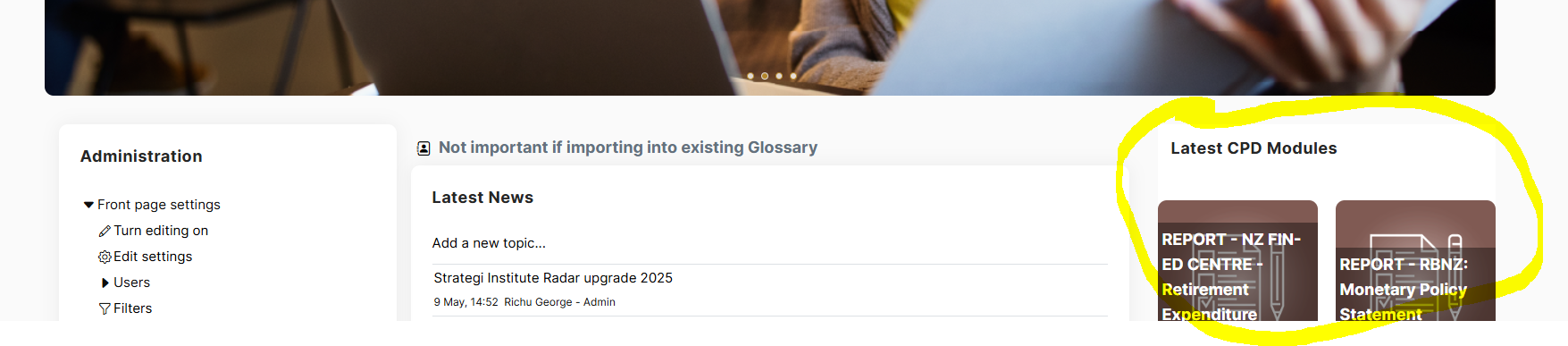
What would be an appropriate width x height of an image for blocks on the left and right sides of a page? Would it be 205 x 1920 or something else? I have attached a screenshot for your reference.
Kind Regards,
Michael Hossaini
Hi Michael,
For that type of block, images with a 1:1 ratio (square format) would be ideal e.g. 400x400 px or 600x600px. You can also use a landscape image (400x250 px)
For example, for the 'Subscribe to newsletter' banner in the Totara Community, we use a 400x400 px banner size with a Landscape Shape and tile size set to Medium. For the 'Learning with Impact Takeaway' banner, we use a 600x600 px with a square shape and tile size set to Medium.
If you want to use the Portrait shape on the side panel, I recommend going for a 400x640 px banner size.
Many thanks,
Beatriz